Install the app

Free on Google Play for Android. On iPhone, install Apple’s TestFlight app first, then open the invitation link. Both versions have the same features.
What you need before you start
SteerClaw is the app. The thinking is done by an AI model. SteerClaw does not come with one, so the first thing it asks is how to reach a model. There are two ways, and the difference is where your requests go.
- Your own LLM server (most private). If you already run a model server, such as Ollama, LM Studio or llama.cpp, SteerClaw connects to it over your network. Your requests, files and chats stay on your own network, and no AI company sees them.
- An API key from an AI company. For everyone else; no server needed. An API key is a long code, a bit like a password, that an AI company gives you so an app can use its AI on your account. Your requests go from your phone to that company, under its privacy terms, and it bills you for what you use. SteerClaw works with Anthropic, OpenAI, Azure OpenAI, Groq, Cerebras, xAI and OpenRouter.
Either way, Steer Corp never sees your requests. You can set up both and switch models for each chat.
Tasks that use tools, such as reading files, searching the web and creating documents, need a model that can use tools. Current Claude and GPT models can. For a model on your own server, SteerClaw shows a Tools switch when you add it.
Setting up
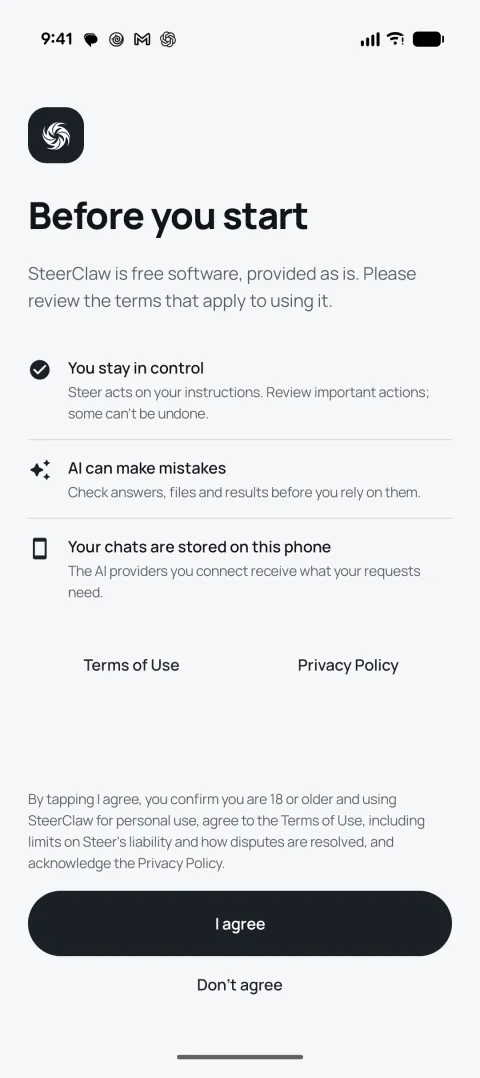
The first screen, “Before you start”, explains that SteerClaw is free software, that AI can make mistakes and that chats are stored on your phone. You confirm you are 18 or older and tap I agree. Then the app walks through four numbered steps.
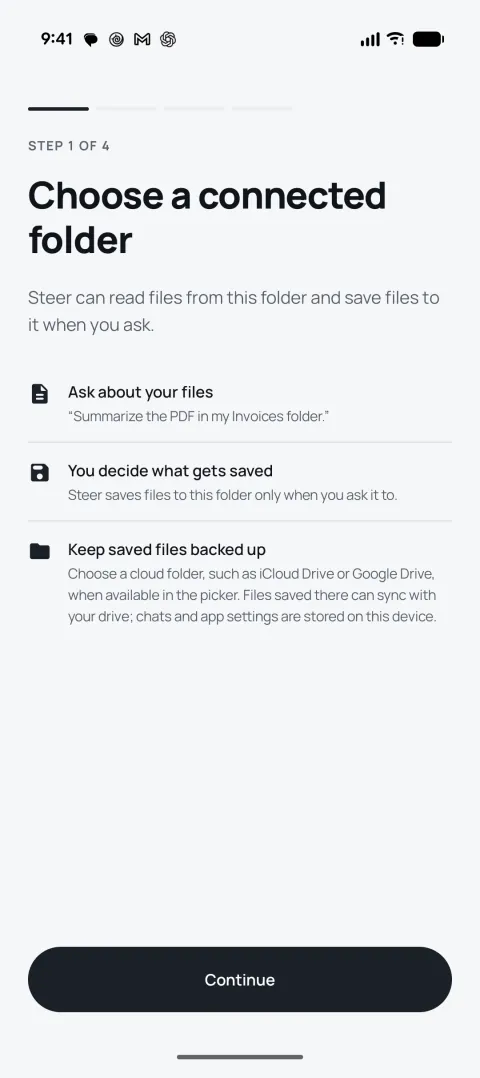
Step 1: Choose a connected folder
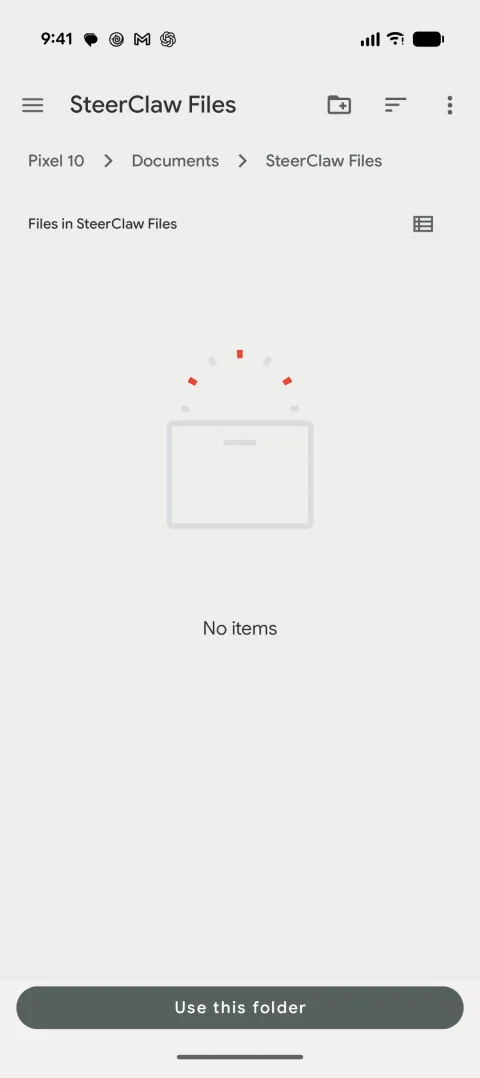
SteerClaw can read files from this folder and save files to it when you ask. Tap Continue and the phone’s folder picker opens. Pick a folder on the phone, such as one in Documents. A cloud folder, such as iCloud Drive on iPhone, works too if the picker offers it. On Android, tap Use this folder, then Allow.
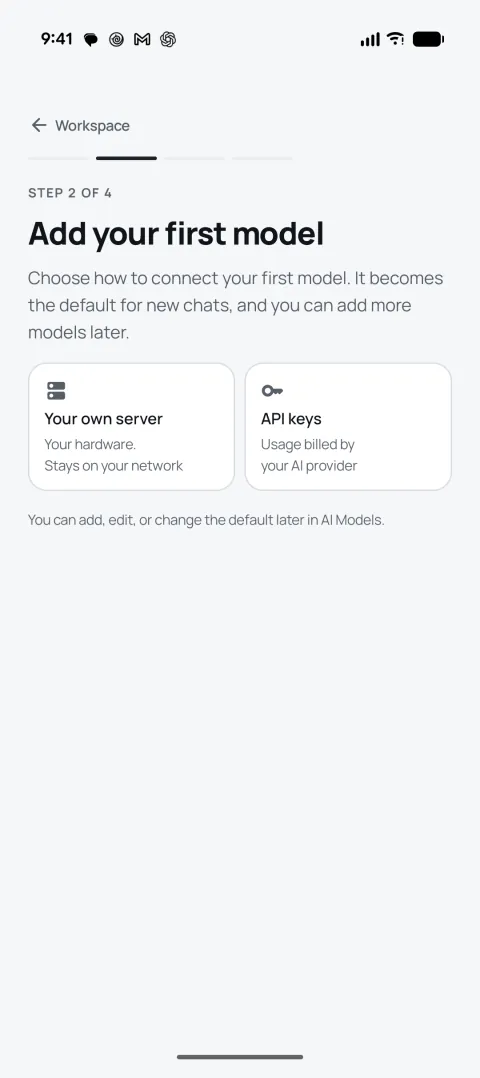
Step 2: Add your first model
Choose Your own server if you run an LLM server, or API keys if you have a key from an AI company. The model you add becomes the default for new chats. You can add more later.
Step 3: Connect it
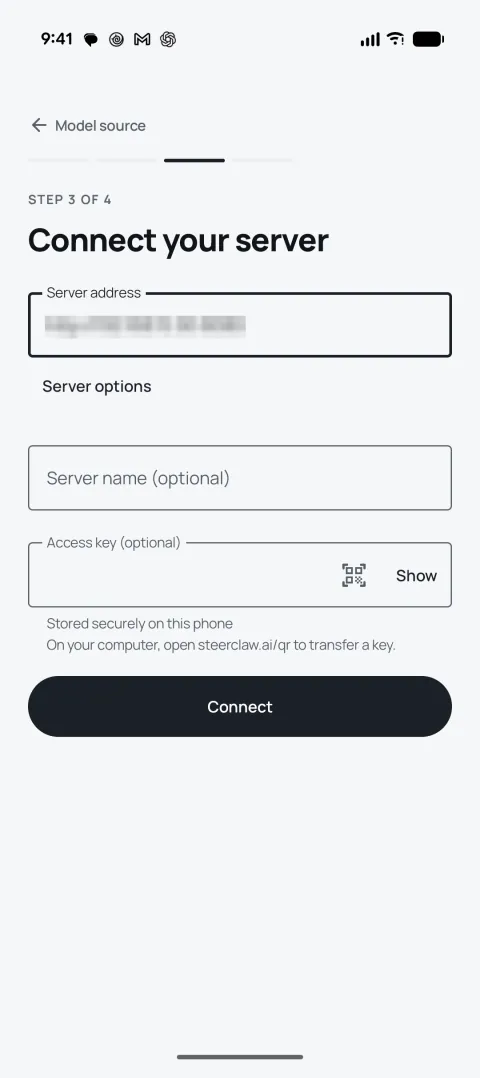
Your own server. Enter your server’s address and port, for example http://192.168.1.20:11434. Use the port shown in your server’s settings; Ollama, for example, uses 11434 unless you change it. Server options lets you give the server a name and add an access key. If your server requires an API key or token, enter it there. Tap Connect.
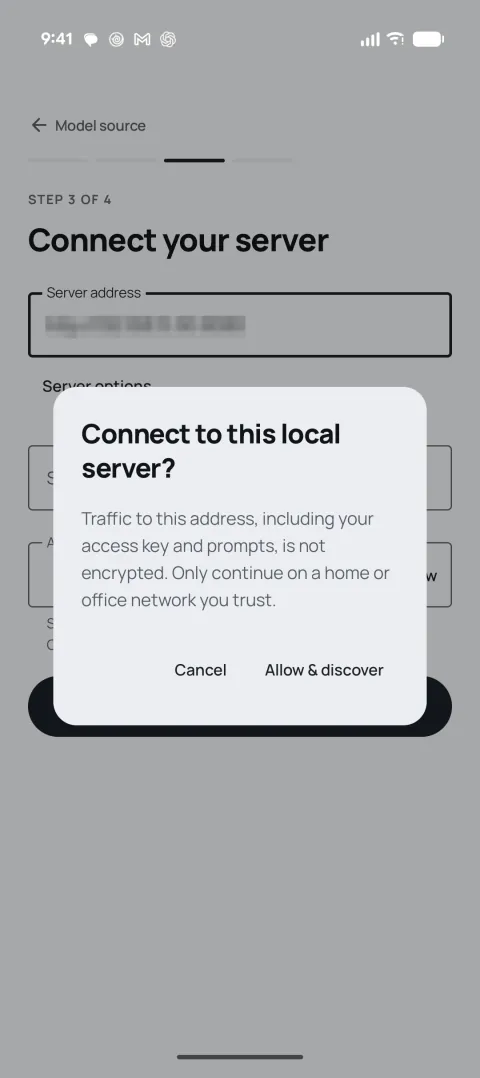
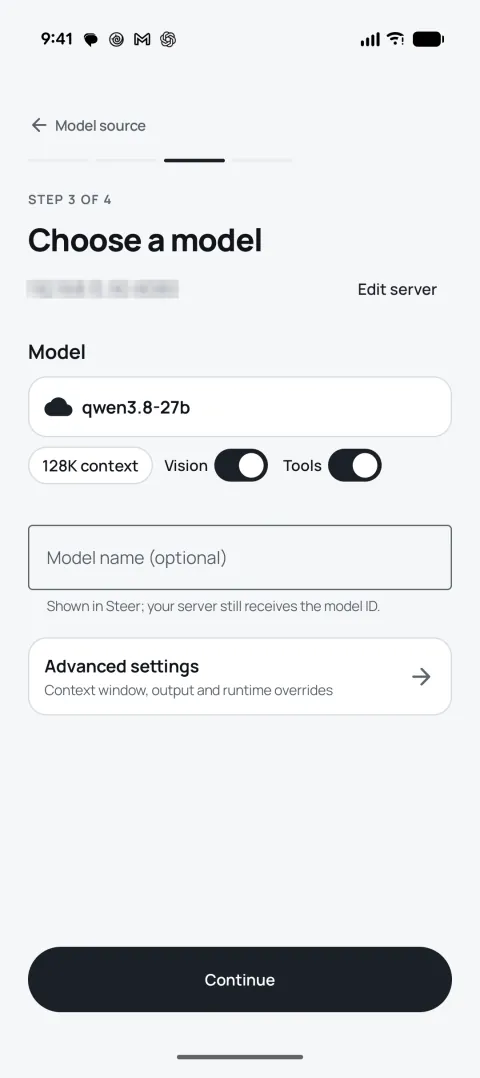
Because a plain http:// address is not encrypted, SteerClaw asks “Connect to this local server?”. Continue only on a home or office network you trust, and tap Allow & discover. SteerClaw then lists the models the server offers. For each one it shows how much text the model can read at once (its context size) and switches for whether it can see images (Vision) and use tools (Tools). You can give the model a shorter name in Model name. Leave Advanced settings as they are, and tap Continue.
API keys. Choose the company that gave you the key, paste the key into the API key field, and tap Connect. Leave the Endpoint as it is. SteerClaw checks the key, then lets you choose a model. If you are not sure which, pick the one the company recommends; for Anthropic, Claude Sonnet 5.5. If you are setting up on your phone, copy the key in your phone’s browser and paste it. If the key is on your computer, open steerclaw.ai/qr there, paste the key, and tap the QR icon in the key field to scan it.
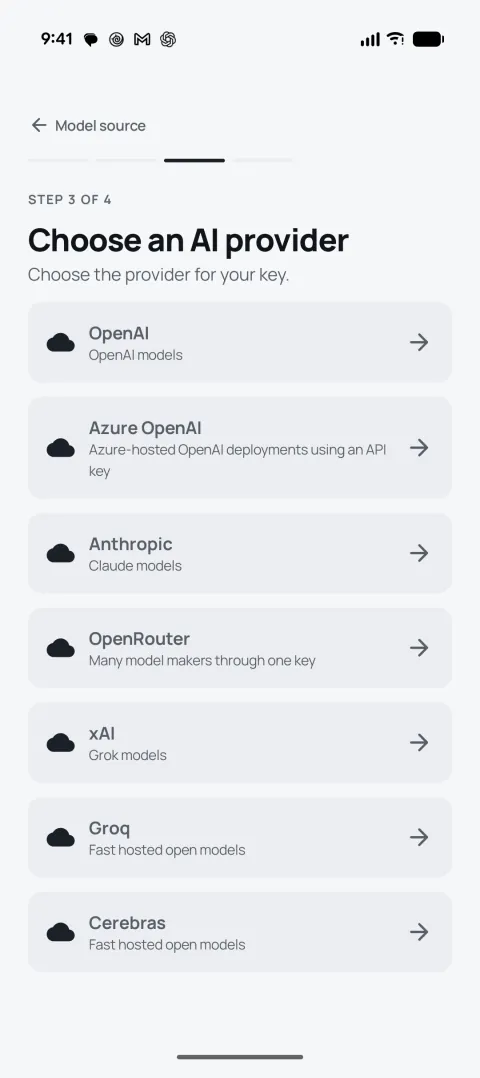
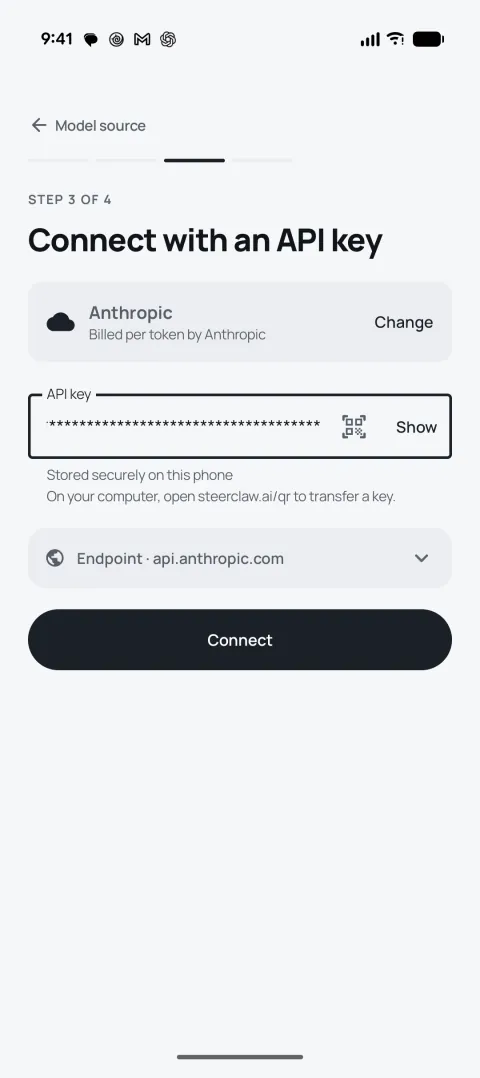
If Connect fails. For your own server, check that the phone and the server are on the same network, that the server is running, and that it accepts connections from other devices. For an API key, check that you copied the whole key and chose the company that issued it.
Step 4: Enable search
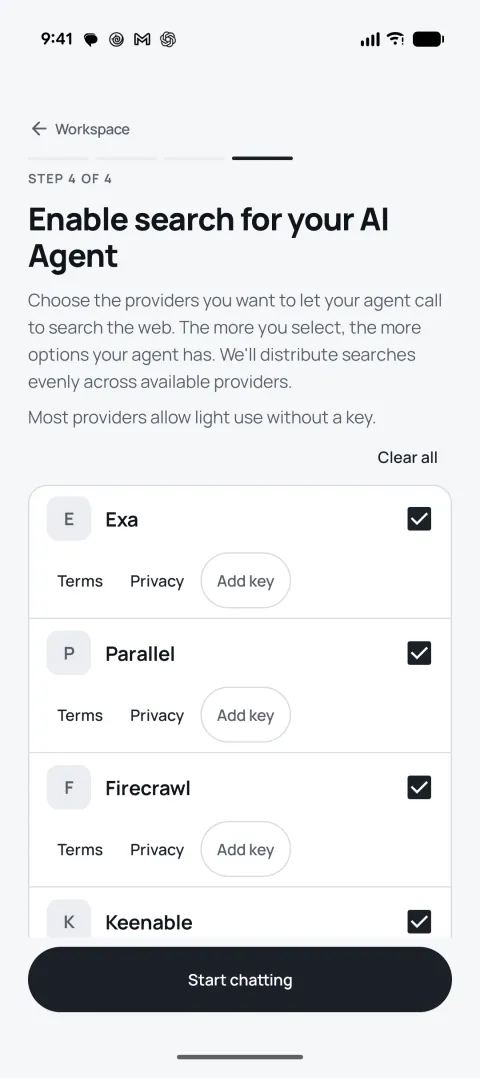
Web search runs through the search services you tick. Exa, Parallel, Firecrawl, Keenable, Tavily and Brave are all ticked at first, and you can leave them that way. All of them except Brave allow light use without a key; Add key lets you use your own account with any of them. Tap Start chatting.
Your first task
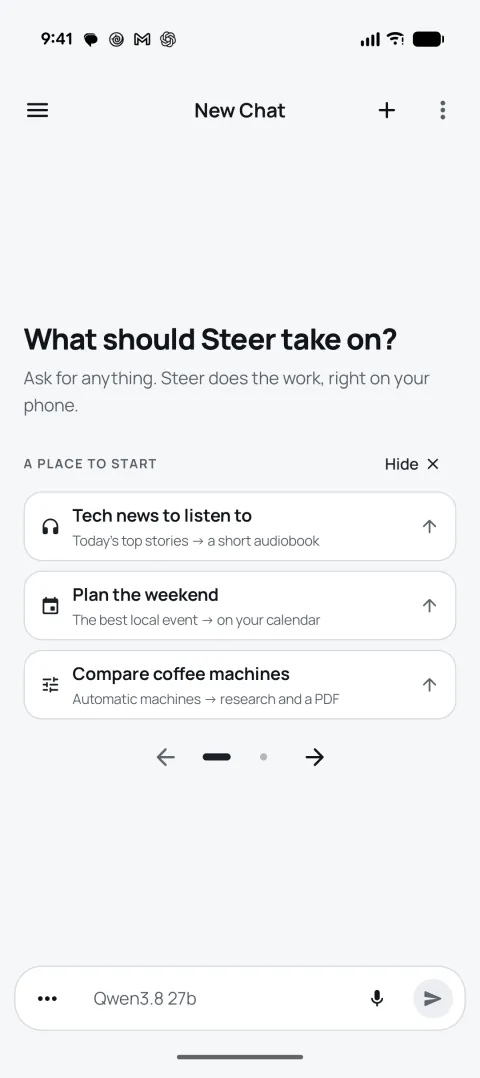
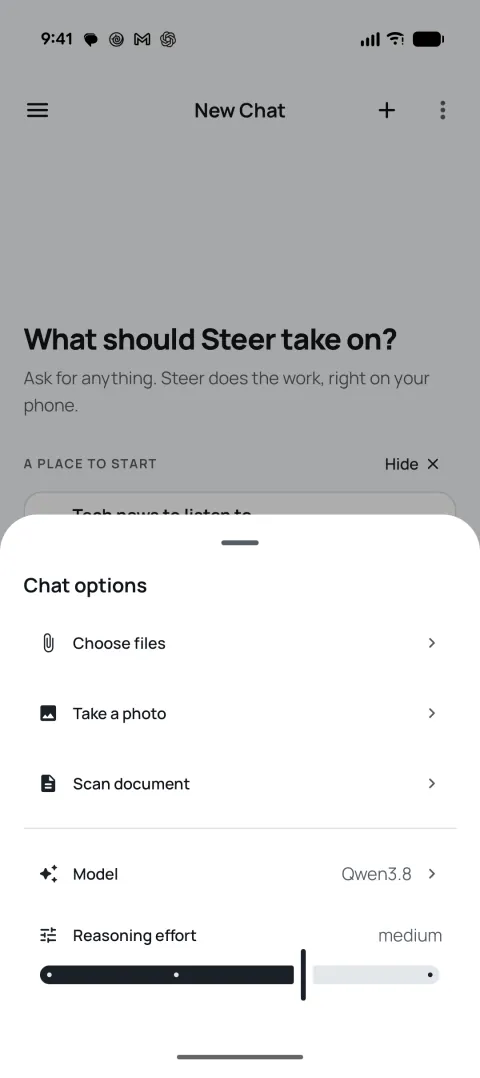
You land in a new chat that asks, “What should Steer take on?” Type what you need, or tap one of the suggestions under A place to start to send it. The ••• button beside the message box opens the chat options: Choose files, Take a photo or Scan document, the model for this chat, and the reasoning effort, which sets how long the model thinks before answering. It starts at medium.
A good first task uses something you already have on hand:
- Scan a bill and ask what you could do to lower it.
- Take a photo of something broken and ask whether you can fix it yourself.
- Choose a spreadsheet and ask for the three things that stand out, with a chart.
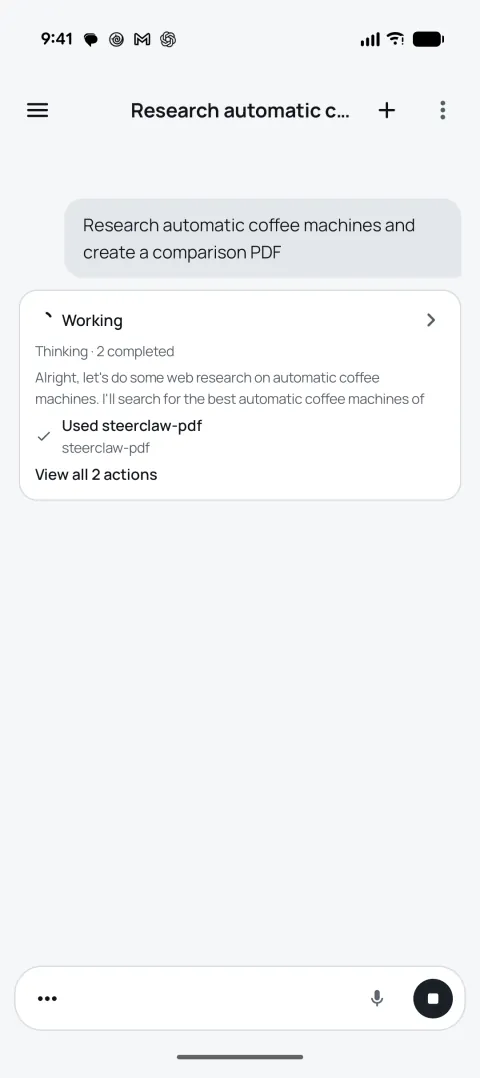
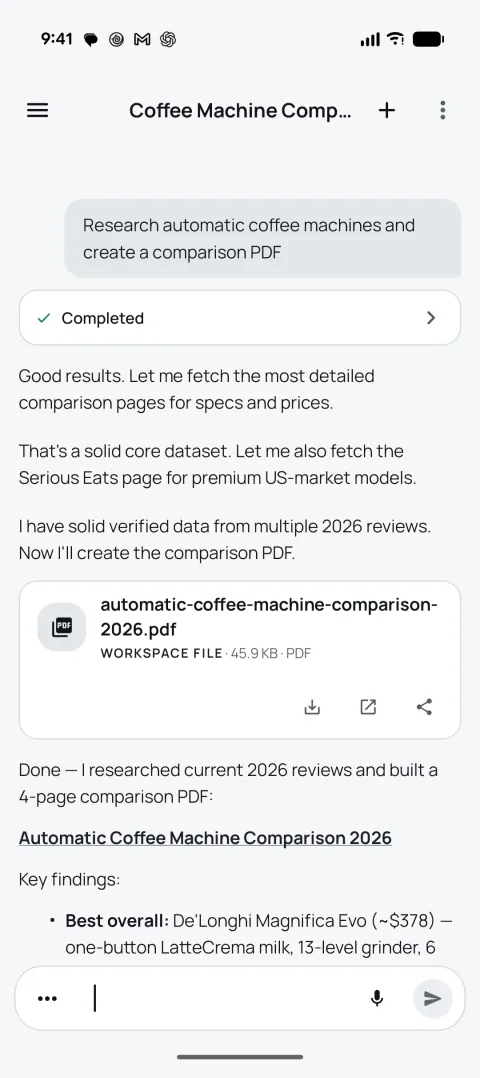
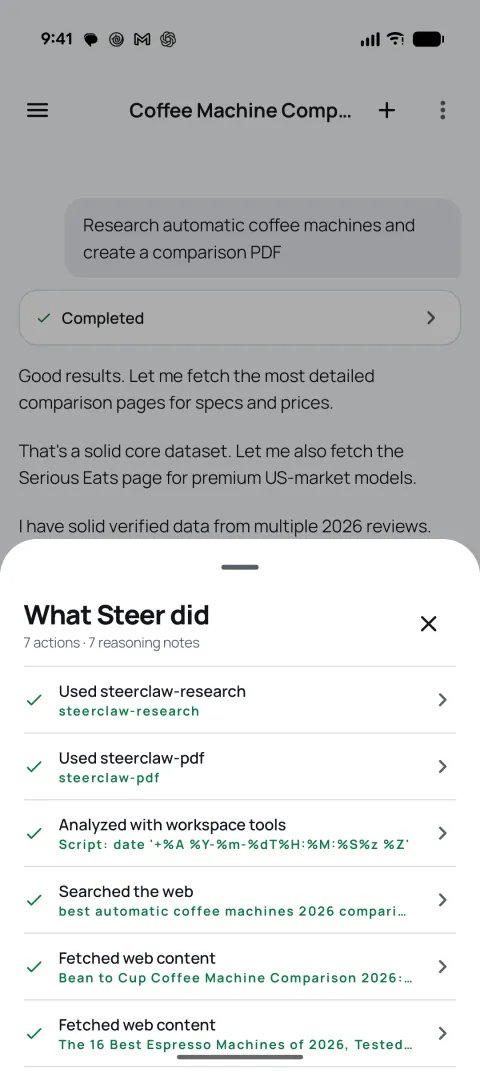
While SteerClaw works, a card shows what it is doing and its latest step. Tap the card to open “What Steer did”, which lists every action, such as each web search and page it read, with its reasoning notes. Files it creates appear in the chat with buttons to save, open and share them.
The screenshots below are from the “Compare coffee machines” suggestion, running on an LLM server at home. SteerClaw searched for current reviews, read the most detailed ones and created a four-page comparison PDF.
Add more models later
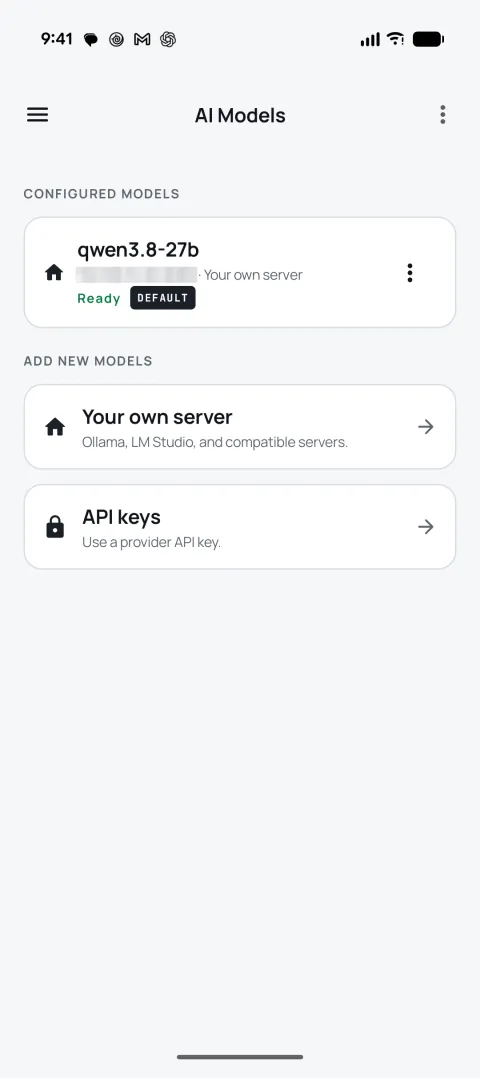
Open the menu (☰) and choose AI Models. Configured models lists every model you have added and marks the default. Under Add new models, choose Your own server or API keys and follow the same steps as during setup.
Android and iPhone differences
A few things differ because the platforms do.
| Feature | Android | iPhone |
|---|---|---|
| Availability | Google Play, production release | iPhone beta on TestFlight |
| Dictation | System speech recognition, on-device where available | Apple speech recognition |
| Reporting a problem | Usually opens your email app addressed to support | In-app form that shows what will be sent |
| App lock | Fingerprint, face or device passcode | Face ID, Touch ID or passcode |
If something does not work, email support@steercorp.io with your phone model and what you were trying to do. Please never include an API key.
Frequently asked questions
Do I need a SteerClaw account?
No. There is no SteerClaw account and nothing to sign up for. You connect your own model inside the app, and your chats, files and memory are stored on your phone. If you sign in to a work tool such as GitHub or Notion, that sign-in is with the tool itself.
Does SteerClaw cost anything?
The app is free, with no ads and no in-app purchases. If you use an API key, the provider bills you for what you use. Your own LLM server costs nothing extra to use.
Does Steer Corp see my chats?
No. Your chats, files and memory are stored on your phone, and requests go from your phone straight to the model you chose. With your own LLM server, they stay on your own network. With an API key, they go to that AI company under its privacy terms. Steer Corp does not relay or see them either way.
Do I need my own LLM server?
No. A server is the most private option, but you can use an API key from a provider such as Anthropic, OpenAI or OpenRouter instead, and the phone talks to that provider directly. You can also set up both and switch models for each chat.